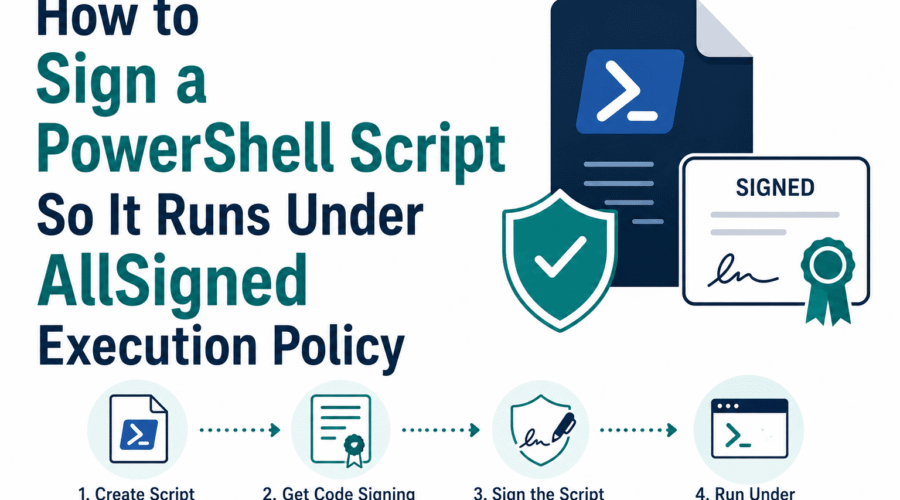
PowerShell’s AllSigned execution policy requires every script that runs on the machine to carry a valid digital signature from a trusted publisher. Getting a script to run under AllSigned involves two distinct requirements that must both be met: the signature must be cryptographically valid, and the signing certificate must be in the machine’s Trusted Publishers certificate store.
The second requirement (Trusted Publishers) is what catches most administrators off guard. A certificate from a public CA that is fully trusted by Windows for general purposes does not automatically satisfy PowerShell’s AllSigned requirement. The certificate must be specifically present in the Trusted Publishers store, which is separate from the Trusted Root Certification Authorities store.
This guide covers execution policy mechanics, the complete signing workflow, the certificate requirements and trust store, and how to distribute signed scripts to machines where they will run under AllSigned.
PowerShell Execution Policies: What Each One Requires
| Policy | What it allows | Signature required? | Practical use |
| Restricted | No scripts at all; only interactive commands | N/A | Default on Windows client. No scripts run. |
| AllSigned | Any script that is signed by a trusted publisher | Yes, for all scripts regardless of origin | Enterprise environments with strict script governance |
| RemoteSigned | Local scripts run without signature; scripts downloaded from internet must be signed | Yes, for downloaded/remote scripts only | Common for development machines and servers that run local scripts |
| Unrestricted | All scripts run; downloads prompt for confirmation | No | Development use; not recommended for production |
| Bypass | All scripts run, no prompts | No | CI/CD pipelines and automation contexts where execution policy is managed externally |
AllSigned is the strictest policy that still allows automation. If you are setting execution policy to AllSigned on production machines, you are committing to signing every script that will run there, including scripts from Microsoft, third-party vendors, and your own organization. The administrative overhead is significant; confirm this is the right policy for the environment before implementing it.
What AllSigned Actually Verifies
When AllSigned is enforced and a script is invoked, PowerShell performs two checks in sequence:
- Signature validity: The cryptographic signature at the end of the script file must be valid. This means the script content has not changed since signing, the signature was created with a certificate that has not expired or been revoked, and the certificate chain is valid.
- Publisher trust: The signing certificate must be in the Trusted Publishers certificate store on the machine. This is checked in the LocalMachine\TrustedPublishers store (for machine-wide trust) or the CurrentUser\TrustedPublishers store (for user-specific trust).
If the signature is valid but the publisher is not yet trusted, PowerShell prompts: ‘Do you want to run software from this publisher? Never run [N] Run once [O] Suspend [S] Always run [A] [?] Help.’ Selecting Always run adds the certificate to the current user’s Trusted Publishers store. Selecting Never run adds it to the Untrusted Certificates store, blocking all scripts from that publisher. In non-interactive environments (scheduled tasks, remoting sessions), this prompt cannot be answered and the script fails to run.
The Trusted Publishers requirement means that deploying a signed script to a new machine is a two-step process: distributing the script and distributing the signing certificate into the Trusted Publishers store. In enterprise environments, Group Policy or MDM can push the certificate to the Trusted Publishers store of all managed machines before the scripts are deployed, allowing the scripts to run without any interactive prompts.
Which Certificate Can Sign PowerShell Scripts
PowerShell script signing requires a certificate with the Code Signing extended key usage (EKU OID 1.3.6.1.5.5.7.3.3). Three types of certificates work:
- Public CA code signing certificate (OV or EV): Issued by a commercial CA. Works for signing scripts distributed externally or to machines outside your domain. The certificate must still be added to the Trusted Publishers store on each machine, but the root chain is already trusted everywhere.
- Enterprise CA certificate from Active Directory Certificate Services (ADCS): Issued by an internal CA in your domain. The ADCS root certificate is automatically distributed to domain-joined machines via Group Policy, making the chain trusted. The certificate can be issued to specific users or computers for script signing. This is the preferred approach for internal enterprise automation.
- Self-signed certificate: Suitable for development and personal use on the machine where the certificate is created. The self-signed certificate must be manually installed in both the Trusted Root CA store and the Trusted Publishers store. It will not work on other machines without the same manual installation.
Signing a Script: Step by Step
Step 1: Get a code signing certificate
| # Option A: Use an existing certificate from your certificate store:
# List certificates with Code Signing EKU: > $cert = Get-ChildItem Cert:\CurrentUser\My -CodeSigningCert > $cert | Select-Object Subject, Thumbprint, NotAfter
# Option B: Request from enterprise CA (requires ADCS): > $cert = Get-Certificate -Template CodeSigning -CertStoreLocation Cert:\CurrentUser\My
# Option C: Create a self-signed certificate for development use only: > $cert = New-SelfSignedCertificate -Type CodeSigningCert -Subject “CN=Your Name (Script Signing)” -CertStoreLocation “Cert:\CurrentUser\My” -KeyUsage DigitalSignature -TextExtension @(“2.5.29.37={text}1.3.6.1.5.5.7.3.3”)
# Trust the self-signed cert locally (for dev use only): > Import-Certificate -FilePath (Export-Certificate -Cert $cert -FilePath cert.cer).FullName -CertStoreLocation “Cert:\LocalMachine\Root” > Import-Certificate -FilePath cert.cer -CertStoreLocation “Cert:\LocalMachine\TrustedPublishers” |
Step 2: Sign the script
| # Sign a PowerShell script with a timestamp:
> $cert = Get-ChildItem Cert:\CurrentUser\My -CodeSigningCert | Select-Object -First 1 > Set-AuthenticodeSignature -FilePath .\Deploy.ps1 -Certificate $cert -TimestampServer “http://timestamp.digicert.com”
# A timestamp is strongly recommended: it preserves the signature’s validity # after the certificate expires. Without a timestamp, the signature becomes # invalid when the certificate expires.
# Verify the signature: > Get-AuthenticodeSignature .\Deploy.ps1 | Select-Object Status, SignerCertificate # Status should be: Valid # If status is HashMismatch, the file was modified after signing. # If status is NotTrusted, the certificate is not in Trusted Publishers. |
Step 3: What the signature looks like in the file
After signing, the .ps1 file has a signature block appended at the end. This block is plain text and looks like PowerShell comments. It does not affect the script’s execution; PowerShell parses the signature block separately.
| # Example of a signed script (end of file):
Write-Host ‘Hello, World!’
# SIG # Begin signature block # MIIHdAYJKoZIhvcNAQcCoIIHZTCCB2ECAQExCzAJBgUrDgMCGgUA… # [base64 encoded signature data] # SIG # End signature block
# IMPORTANT: Any change to the script content above the signature block # invalidates the signature. Even adding a blank line or changing whitespace # makes the signature invalid. Re-sign after every edit. |
The signature covers the entire script content as it existed at signing time. Any modification to the script, including adding or removing whitespace, changing comments, or editing script logic, invalidates the signature and the script will fail the hash verification check under AllSigned. Always re-sign after every edit to a production script.
Distributing Signed Scripts to Other Machines
A signature that is valid on the signing machine is cryptographically valid on any machine. The signature travels with the script file. However, the script will only run under AllSigned if the signing certificate is in the Trusted Publishers store on the target machine.
Enterprise distribution via Group Policy
In Active Directory environments, Group Policy can distribute certificates to the Trusted Publishers store on managed machines. Navigate to Computer Configuration, Windows Settings, Security Settings, Public Key Policies, Trusted Publishers. Import the signing certificate. When Group Policy applies, the certificate is pushed to all machines in scope.
With an ADCS-issued certificate, the distribution is even simpler: the ADCS root certificate is already trusted on all domain machines via Group Policy, and if the code signing certificate was issued from that same CA, it chains to a trusted root automatically. You may still need to push the specific certificate to Trusted Publishers, but the root trust is automatic.
MDM distribution (Intune)
For Azure AD-joined or Intune-managed machines, the signing certificate can be deployed via a Trusted Certificate profile in Intune. Configure a certificate profile targeting the Trusted Publishers store on managed machines. Once deployed, scripts signed with that certificate will run under AllSigned without prompting.
Manual distribution on individual machines
| # On each target machine, import the signing certificate to Trusted Publishers:
# (Run as Administrator for machine-wide trust) > Import-Certificate -FilePath .\SigningCert.cer -CertStoreLocation “Cert:\LocalMachine\TrustedPublishers”
# Verify it was imported: > Get-ChildItem Cert:\LocalMachine\TrustedPublishers | Where-Object {$_.Subject -like ‘*Your Name*’}
# Then verify the script will be accepted: > Get-AuthenticodeSignature .\Deploy.ps1 # Status: Valid means the script will run under AllSigned on this machine. |
The Zone.Identifier Problem: Scripts Downloaded From the Internet
Windows marks files downloaded from the internet with an alternate data stream (ADS) called Zone.Identifier, which records that the file came from a potentially untrusted source. This zone marking affects script behavior under some execution policy configurations.
Under RemoteSigned, scripts with a Zone.Identifier marking are treated as remote scripts and require a signature. Under AllSigned, all scripts require signatures regardless of zone marking, so the zone identifier does not change the policy requirement. However, some environments have additional security policies that block execution of zone-marked files even when signatures are valid.
| # Check if a script has a Zone.Identifier stream (was downloaded from internet):
> Get-Item .\Deploy.ps1 -Stream Zone.Identifier
# Remove the zone marking (unblock the file): > Unblock-File .\Deploy.ps1 # Or for all scripts in a directory: > Get-ChildItem .\scripts\*.ps1 | Unblock-File
# If distributing signed scripts and users are downloading them from a website, # include instructions to run Unblock-File or consider distributing via # Group Policy software distribution or Intune, which does not apply zone marking. |
Signing PowerShell Modules Instead of Individual Scripts
For PowerShell modules distributed to AllSigned environments, signing every individual .psm1 and .ps1 file in the module is required. PowerShell loads each file in the module and verifies the signature of each one. An unsigned file anywhere in the module causes loading to fail.
An alternative for modules is catalog signing: creating a catalog file (.cat) that covers all files in the module, then signing the catalog. The catalog signature effectively signs the module as a whole. Set-AuthenticodeSignature can sign catalog files using the same syntax as script signing.
| # Sign all .ps1 and .psm1 files in a module directory:
> $cert = Get-ChildItem Cert:\CurrentUser\My -CodeSigningCert | Select-Object -First 1 > Get-ChildItem .\MyModule -Recurse -Include *.ps1,*.psm1 | ForEach-Object { Set-AuthenticodeSignature -FilePath $_.FullName -Certificate $cert -TimestampServer “http://timestamp.digicert.com” }
# Verify all files were signed successfully: > Get-ChildItem .\MyModule -Recurse -Include *.ps1,*.psm1 | ForEach-Object { Get-AuthenticodeSignature $_.FullName } | Select-Object Path, Status # All should show Status: Valid |
Frequently Asked Questions
My script is signed but still fails under AllSigned. What is wrong?
There are three common causes. First, the signing certificate is not in the Trusted Publishers store on the machine where the script is running. Run Get-AuthenticodeSignature on the script file and check the Status field: NotTrusted means valid signature but untrusted publisher. Second, the script was modified after signing. Status HashMismatch means the file content no longer matches the signature. Re-sign the script. Third, the certificate has expired and no timestamp was included at signing time. A timestamp preserves the signature’s validity after certificate expiry; a signature without a timestamp becomes invalid when the certificate expires.
Do I need an expensive OV or EV code signing certificate for PowerShell script signing?
For enterprise environments where scripts run only on domain-joined machines, no. A certificate issued by Active Directory Certificate Services is free, automatically trusted on domain machines, and sufficient for AllSigned compliance within the domain. For scripts distributed publicly or to machines outside your domain, a public CA certificate is needed because the CA root must be trusted on the target machine. A standard OV certificate is sufficient; EV is not required for PowerShell script signing.
What happens if I edit a signed script?
Any edit to the script content invalidates the digital signature. When PowerShell evaluates the script under AllSigned, the hash of the current file content is compared to the hash recorded in the signature. If they differ, PowerShell reports a HashMismatch status and refuses to run the script. After every edit to a production script, re-sign it using Set-AuthenticodeSignature before deploying it to AllSigned environments.
Can I automate script signing in a deployment pipeline?
Yes. Set-AuthenticodeSignature can be called from any PowerShell step in a CI/CD pipeline. The signing certificate must be available to the pipeline: either in the certificate store of the build agent, loaded from a secure secret (exported as a .pfx and imported during the pipeline run), or via a cloud HSM service that provides a PowerShell signing interface. Timestamp all scripts at signing time in the pipeline so that deployed scripts remain valid after certificate rotation.

Gloria Bradford is a renowned expert in the field of encryption, widely recognized for her pioneering work in safeguarding digital information and communication. With a career spanning over two decades, she has played a pivotal role in shaping the landscape of cybersecurity and data protection.
Throughout her illustrious career, Gloria has occupied key roles in both private industry and government agencies. Her expertise has been instrumental in developing state-of-the-art encryption and code signing technologies that have fortified digital fortresses against the relentless tide of cyber threats.